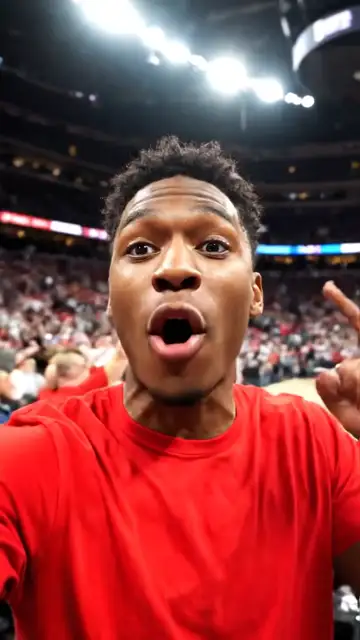
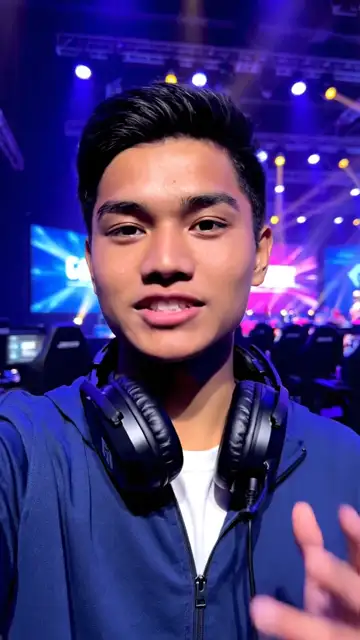
Resize video for any app
Turn a widescreen video vertical, or make it square or 4:5, with a blurred background so nothing is cut off.
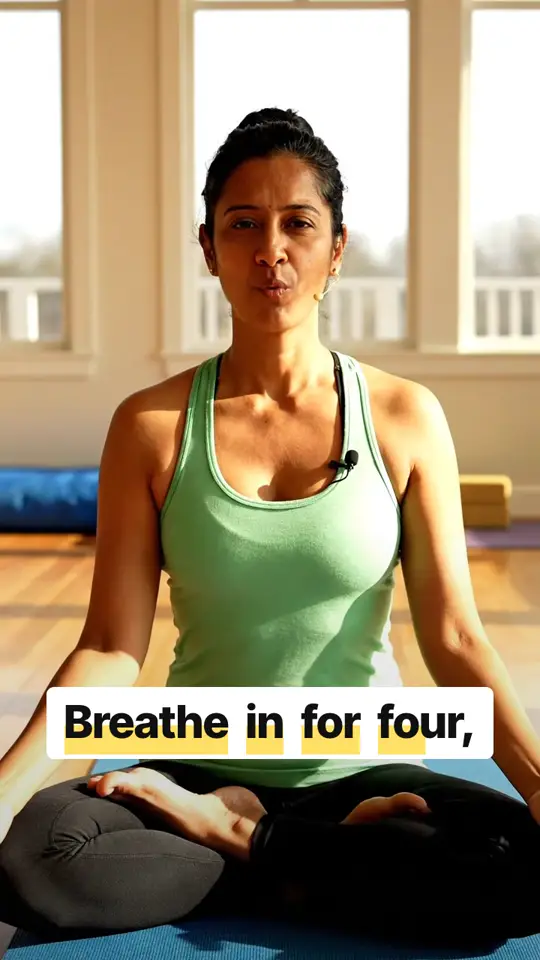
Video sizes for each app
| Where | Shape | Size in pixels |
|---|---|---|
| TikTok | 9:16 | 1080 × 1920 |
| Instagram Reels and Stories | 9:16 | 1080 × 1920 |
| Instagram feed | 4:5 | 1080 × 1350 |
| YouTube Shorts | 9:16 | 1080 × 1920 |
| YouTube | 16:9 | 1920 × 1080 |
| Square posts | 1:1 | 1080 × 1080 |
Fill the empty space
When the shapes don't match, choose what goes around your video.
- 1
Blurred
The video on a soft, blurred copy of itself. Nothing is cut off and there are no black bars.
- 2
Black
Plain black bars, like a cinema screen.
- 3
Crop to fill
Fills the whole frame and trims what doesn't fit. Best when the subject is in the middle.
Horizontal to vertical
A 16:9 video posted to TikTok or Reels shows as a thin strip in the middle of the phone. Resizing to 9:16 fills the screen. With a blurred background your whole picture stays in view; add captions or a line of text in the space above and below to use it well.
Everything runs in your browser. Your video is never uploaded to be resized.
More free tools
- Caption generatorAnimated captions on any video, timed to every word.
- Hook generatorOpening lines that stop the scroll, added to your video.
- Add text to videoPut a title or any text on your video.
- Video to textA transcript of your video as TXT, SRT or VTT.
- Video progress barA bar that fills as your video plays.
- Safe-zone guidesWhat TikTok, Reels and Shorts cover, with templates.
- YouTube title generatorClickable titles under 70 characters.
- YouTube description generatorDescriptions with a search-friendly first line.
- YouTube tag generator25 tags to paste into YouTube Studio.
Questions
How do I resize a video for Instagram?
Open Instadraft, drop in your video and pick 9:16 for Reels and Stories or 4:5 for feed posts. Choose a blurred background, black bars or crop to fill, then export the MP4.
How do I turn a horizontal video into a vertical one?
Pick 9:16. Your video sits in the middle on a blurred copy of itself, so nothing is cut off. Or choose "Crop to fill" to fill the screen and trim the sides.
Is it free?
Yes, with no watermark. You need a free account to export.
What size is the exported video?
1080 × 1920 for 9:16, 1080 × 1350 for 4:5, 1080 × 1080 for 1:1 and 1920 × 1080 for 16:9. Very small videos are enlarged at most twice, so they stay sharp. The frame rate stays the same as your upload.
Can I add captions at the same time?
Yes. Captions are written from the speech and placed in the new frame, so one export gives you a resized video with captions.